1. Purpose
Instruction on how to purchase the Restaurant Management Software CUKCUK.VN 2. Instruction steps
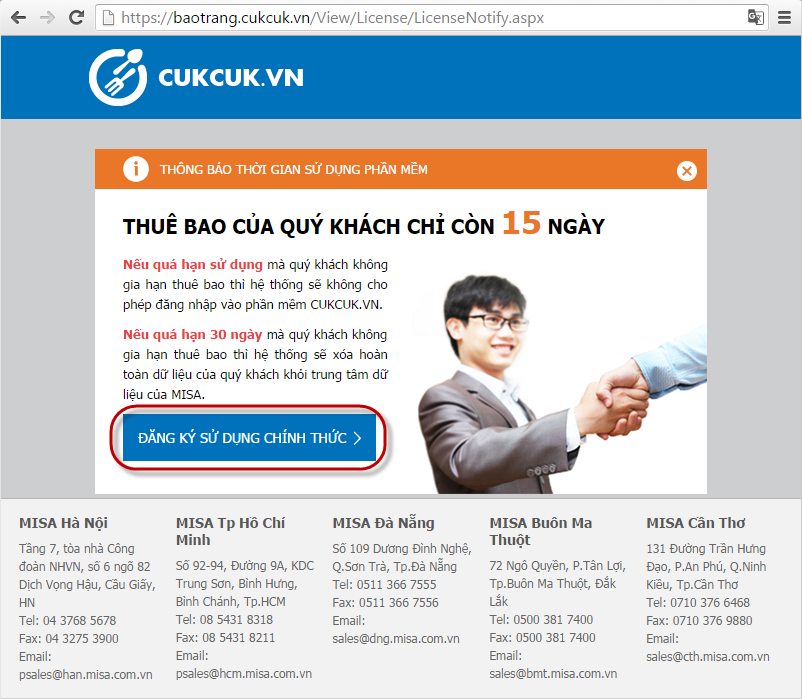
CUKCUK.VN provides multiple packages which fit different kinds of restaurants. To purchaseCUKCUK.VN, follow either of these steps: Alternative 1: Purchase right on license message
1. After logging in, if your restaurant is in trial period, you will be prompted to upgrade. 2. Click UPGRADE on the message
Alternative 2: Purchase on Management page of the restaurant
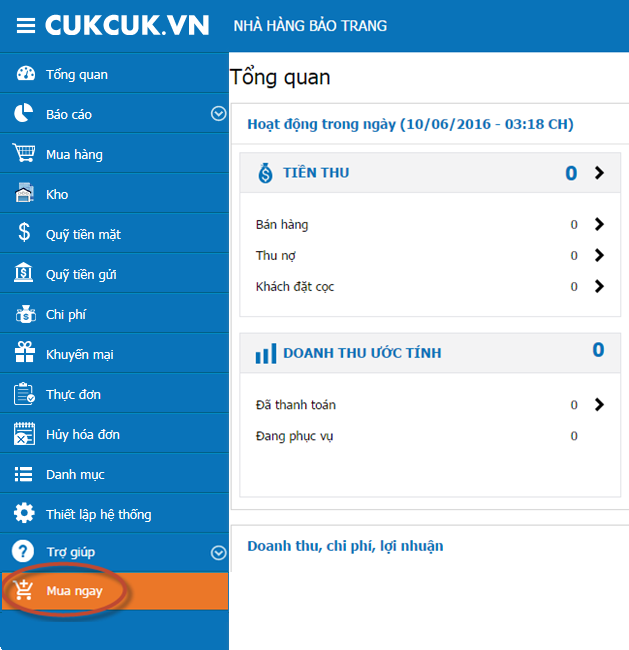
1. On the management page, Buy nowon CUKCUK.VN menu.
Alternative 3: Purchase on the websitewww.cukcuk.vn
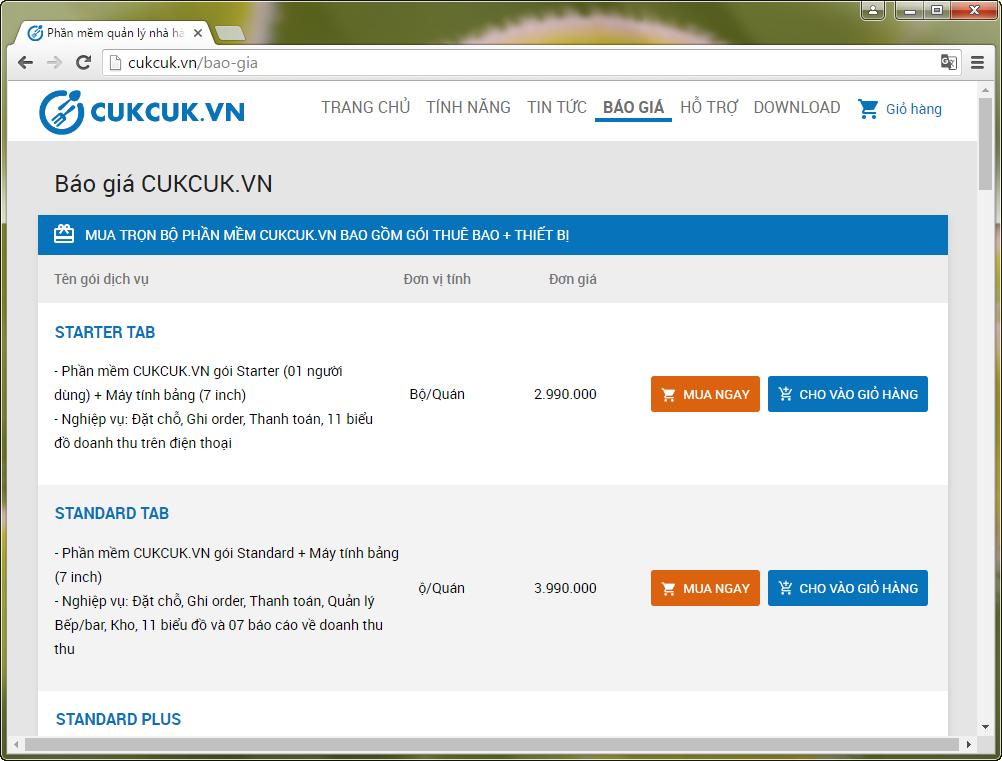
Go to the websitewww.cukcuk.vn, select Pricing tab.
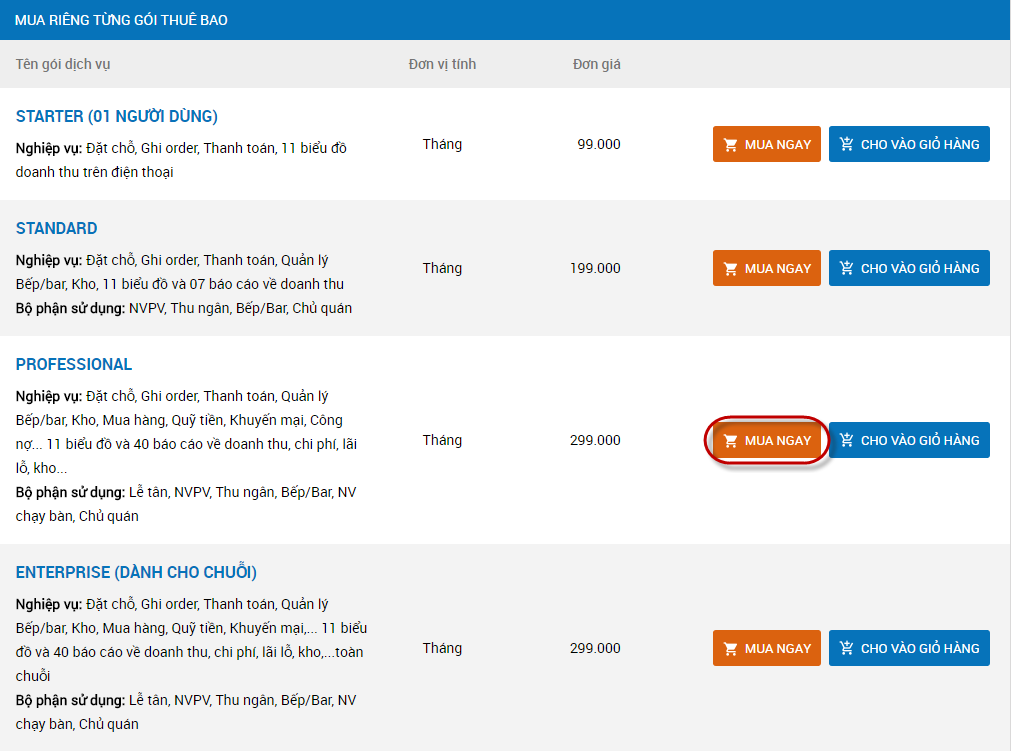
1. If you only buy a single product/service, select a product/service on Pricing tab, click Buy now.
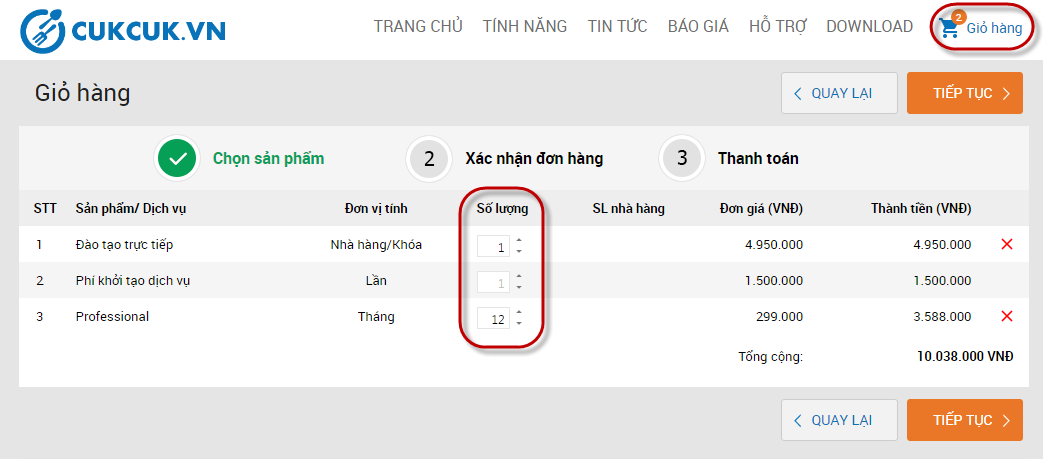
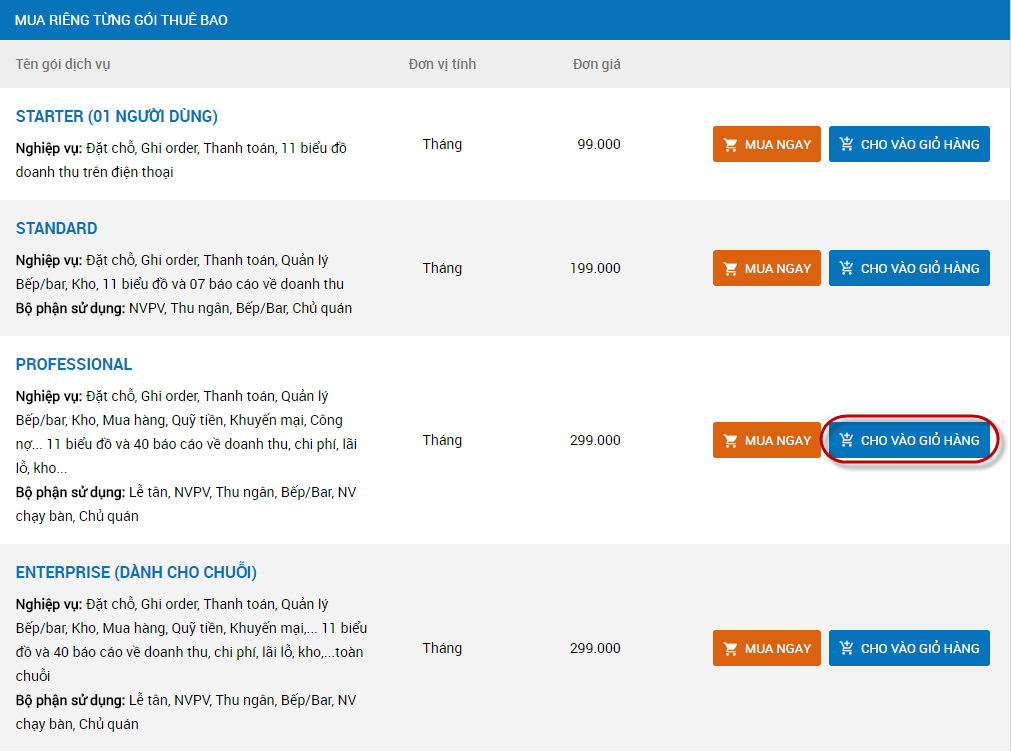
2. If you want to buy many products/services at the same time (e.g.: License and training), click Add to cart on the products/services you want to buy.
Note: One restaurant only can select 1 product. For example: for Professional package, you can select Crystal, Opal... or other package: Starter, Enterprise...
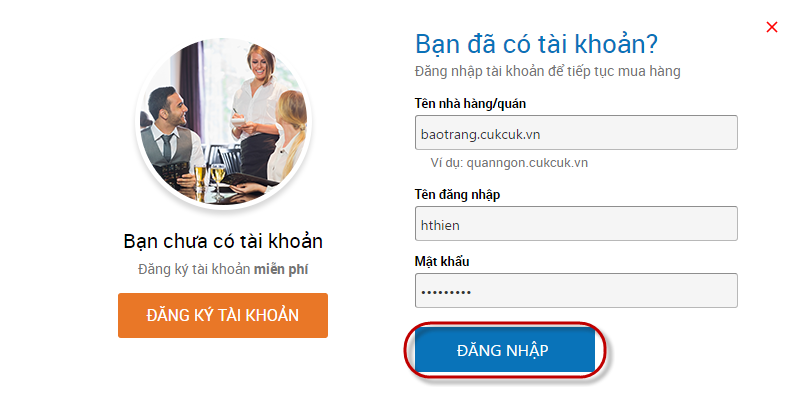
Note: The login account is the account you register for trial.
If you purchase the product/service from the management page of the restaurant, you do not need to log in.
2. If you do not have any account, click Sign up and create an account. See detailed instructions here.
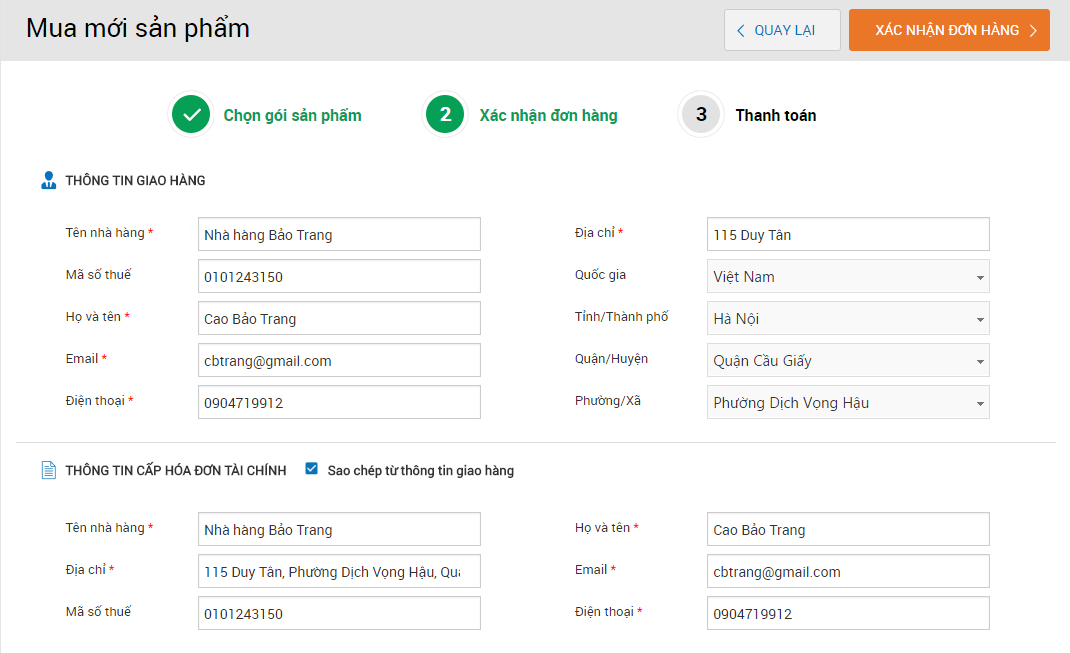
3. Enter information on the restaurant in order to contact and provide taxed invoice.
5.Delivery information is automatically updated from Settings\General information(You can edit later if you want)
6.Information for taxed invoiceis updated from Delivery information by checking Copy from delivery information.
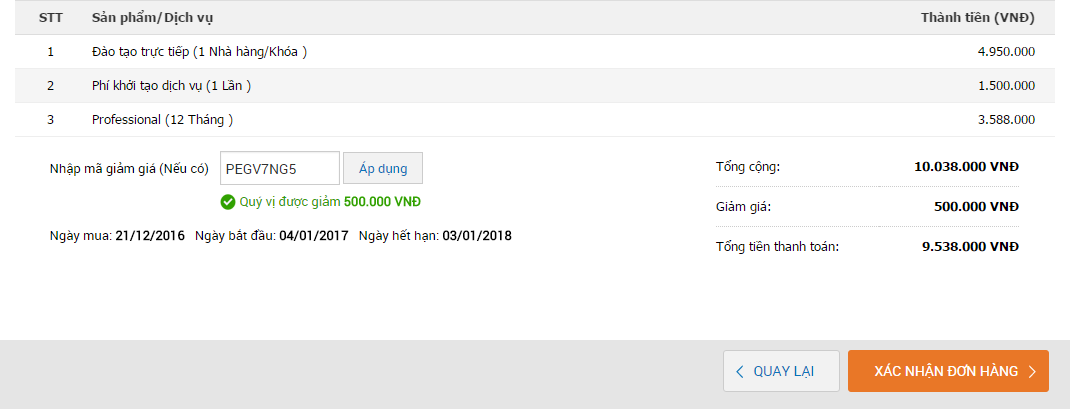
Note: If the restaurant is offered discount, enter discount code as provided by MISA's employee and click Apply.
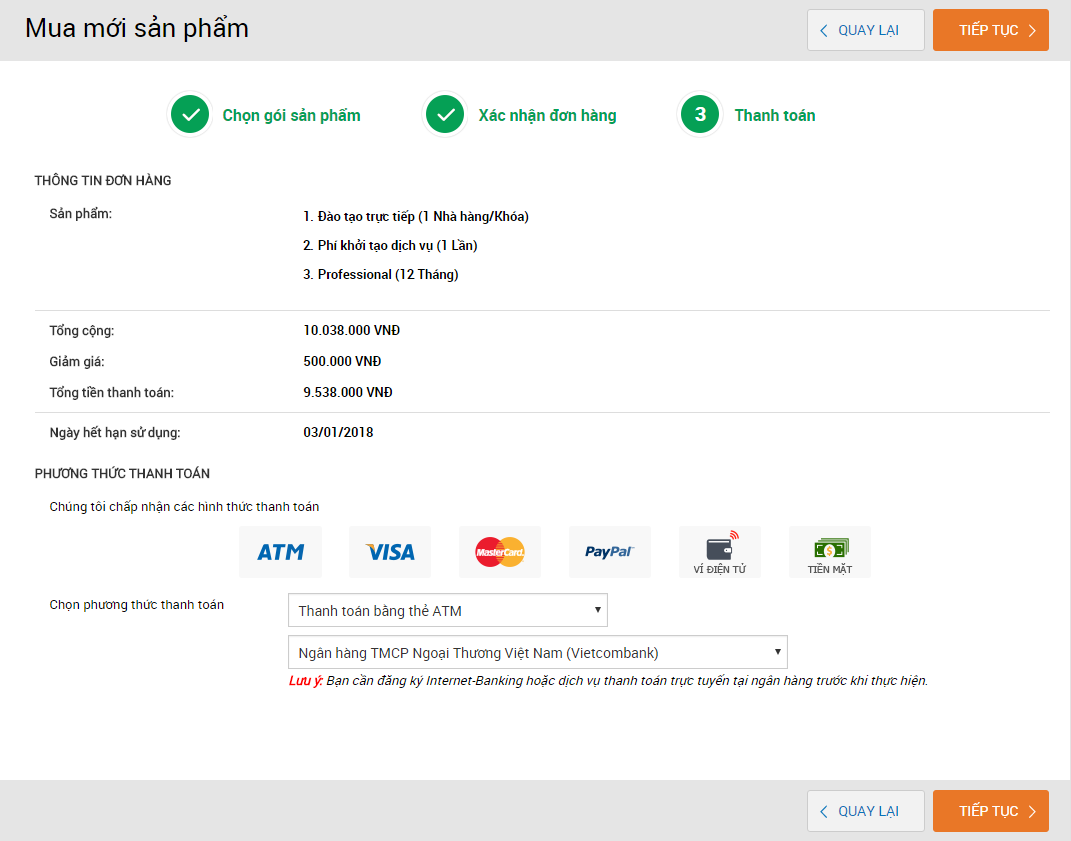
1. You can check order information again before making payment and select method of payment.
2. Currently, the Restaurant management software CUKCUK.VN supports the following method of payment:
1. By ATM card
2. By credit card
3. By digital wallet
4. By Paypal
5. By cash/transfer
See instruction on how to proceed with paymenthere.
3. Select method of payment (e.g.: Select Payment by ATM card and select a bank. If you select this method, you must register Internet Banking or online payment with the bank).
4. Click Next.
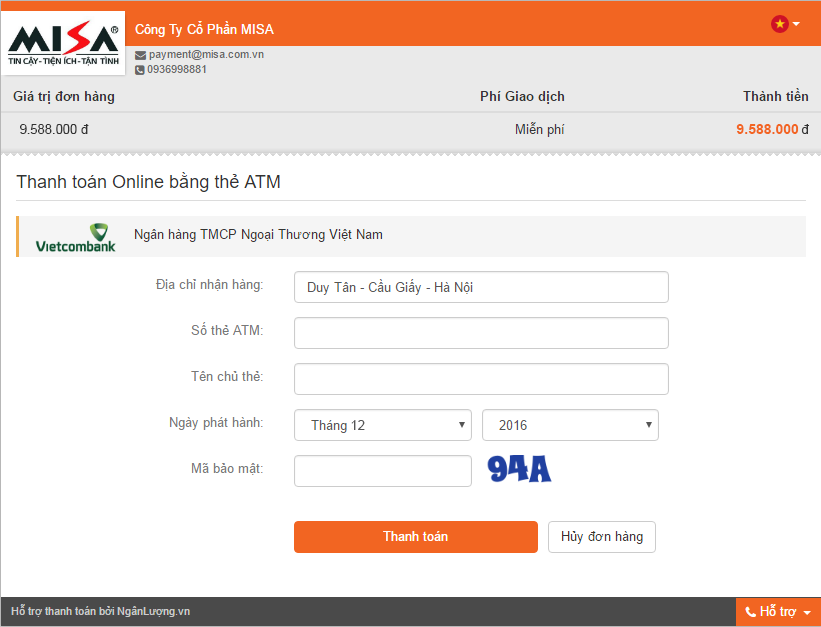
5. Enter card information.
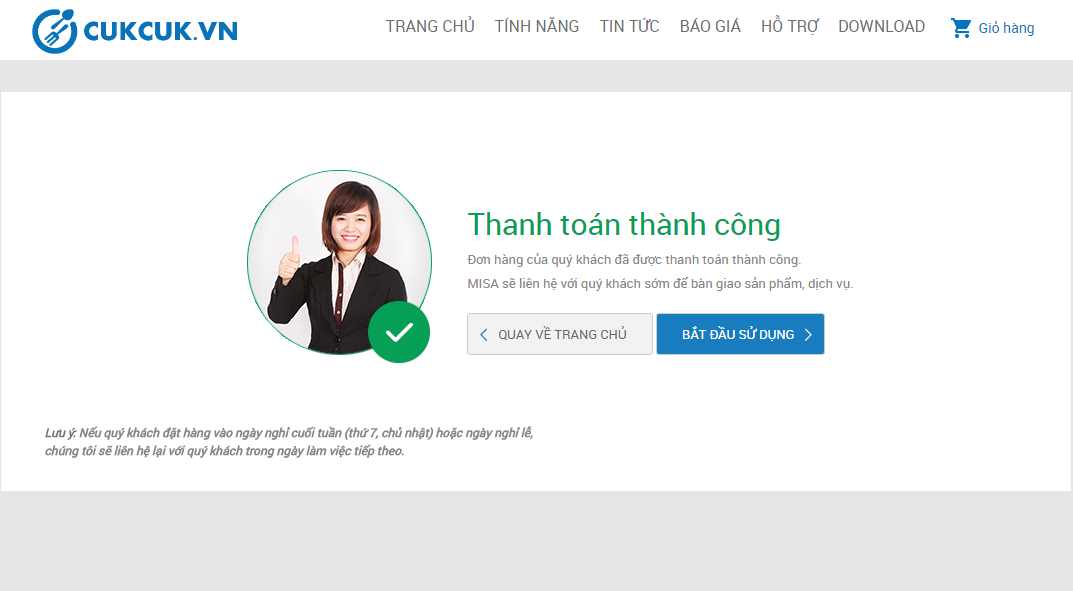
6. Click Pay, the system will send a notification that you have made payment successfully and send payment information to MISA company.
If you encounter any problem, please contact MISA as per the informationhere.


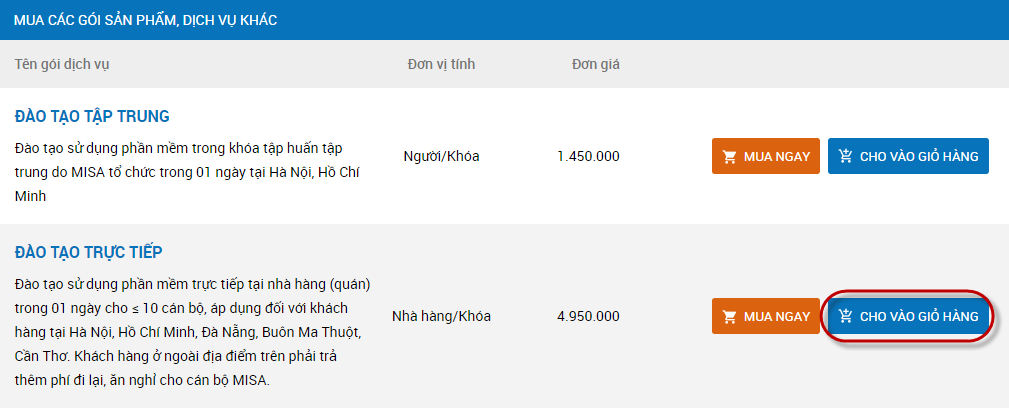
 to check the selected products.